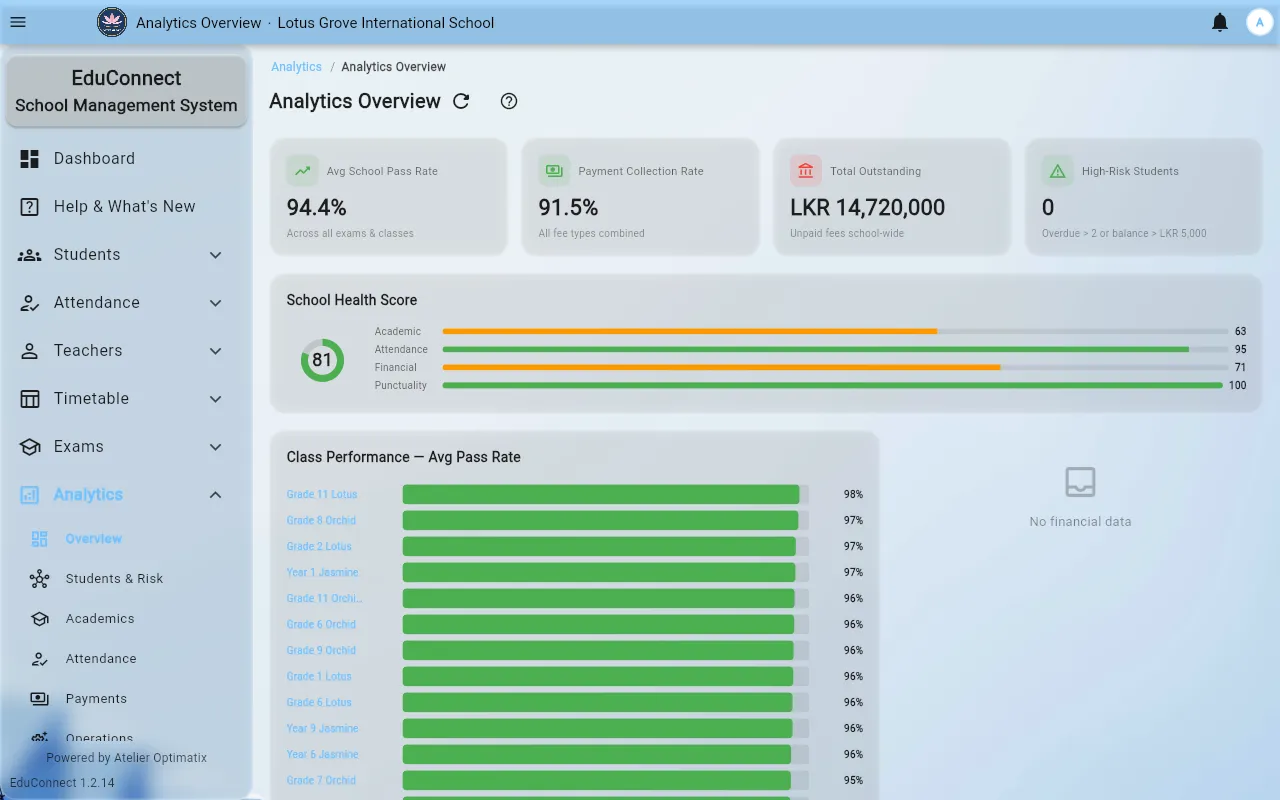
Reading the Analytics Section
What each of the six analytics pages answers, and why some of them are admin-only.
Last updated Sat Sep 26
Where to find it
Analytics in the side drawer. It isn't a single dashboard — it's six pages, each grouped around one kind of decision rather than around one screen of the app:
| Page | What it's for |
|---|---|
| Overview | The starting point — the headline picture across the institute. |
| Students & Risk | Which individual students need attention. |
| Academics | Exam and assessment performance. |
| Attendance | Attendance together with punctuality. |
| Payments | Fees charged against fees actually collected. |
| Operations | How the institute is running day to day. |
Payments and Operations are admin-only. If you're a teacher or coordinator, those two won't appear in your Analytics group — that's the intended access split, not a missing page.
Narrowing to one class
Most pages accept a class filter, and the class you pick is carried in the page's own address. That means a filtered view can be bookmarked or pasted to a colleague and it will open on the same class for them — provided they have access to that page in the first place.
Old links still work
The analytics section was reorganised from a single six-tab dashboard into these separate pages. Older bookmarks and saved links still resolve:
- Numbered tab links (the original
?tab=style) land on the matching page. - The retired page names redirect to their new homes — Exams → Academics, Financial → Payments, Punctuality → Attendance (punctuality was merged in), and Intelligence → Students & Risk.
In every case the class you had selected is carried across, so you don't lose your filter. There's no need to hunt down and update old links.
Related