Tutorial: Assign Subjects and Teachers to a Class
Turning a grade's curriculum into a specific class's real subject list, with a named teacher against each one.
Last updated Sat Sep 26
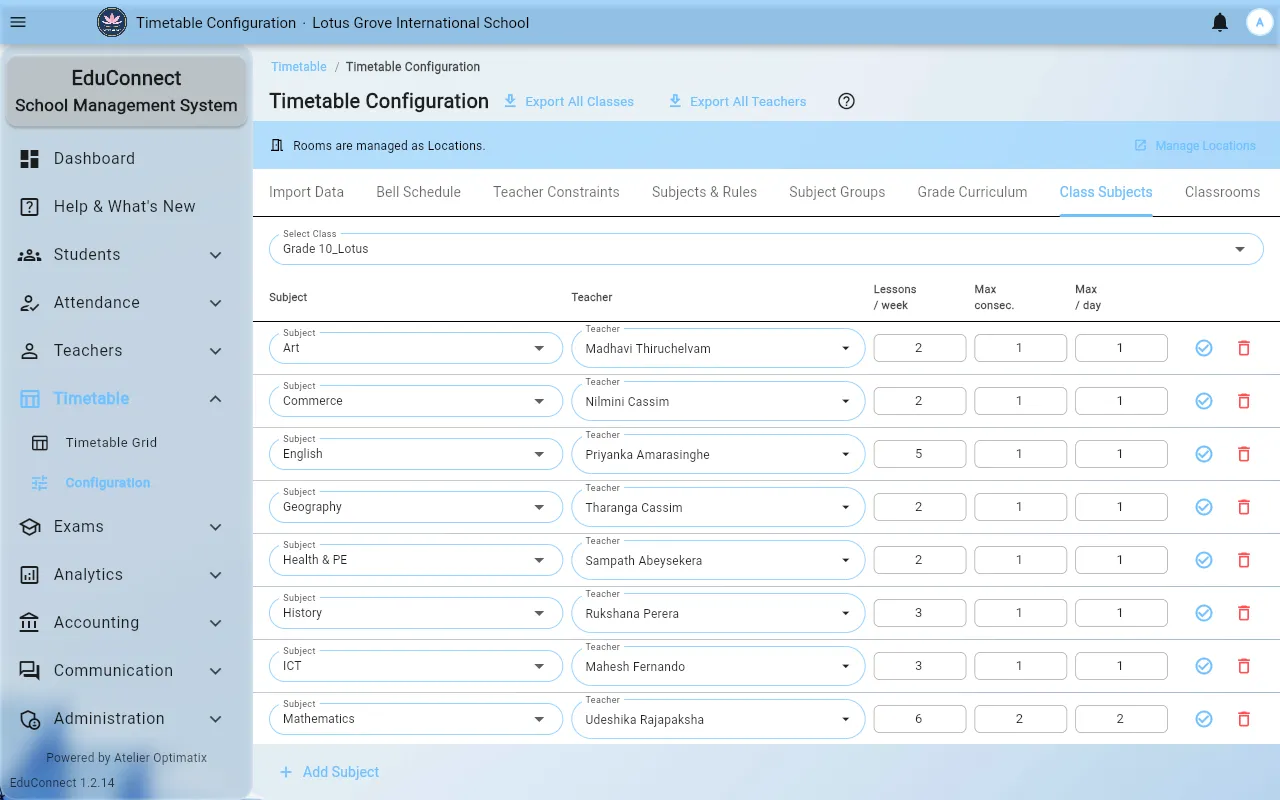
Class Subjects is where a grade template becomes one class's reality: this class studies these subjects, taught by these people. It is the last thing the timetable generator needs.
You need: a grade curriculum applied to the class, and teachers who list the subject among the ones they teach.
Steps
- Open Timetable → Configuration and select the Class Subjects tab.
- Pick the class under Select Class. If you applied the grade curriculum, its subjects are already listed with no teacher yet. If you see No subjects assigned to class, either the curriculum was never applied to that grade, or the class's grade is not what you think it is.
- For each row, set the teacher. Only teachers who list that subject appear in the picker — if the person you want is missing, add the subject to their teacher record first.
- To add a subject the curriculum did not include, select Add Subject and fill in:
- Subject and teacher,
- Lessons/week, Max consec. and Max/day — all optional. Left blank they inherit the grade curriculum's numbers; filled in, the row shows the value with (override) next to it, and that class alone gets the different treatment.
- Save each row as you go. Remove takes an assignment off the class after confirming.
Overrides, and when to use them
Override at the class level only for genuine exceptions — a class that gets an extra Maths period, a split group that only meets twice a week. Anything that applies to the whole grade belongs in Grade Curriculum instead, where it stays consistent across classes and survives the next time the curriculum is saved.
What to do next
Once every class has subjects with teachers against them, you have everything the generator needs: Generate the Timetable.