Tutorial: Watch Attendance as It Happens
Today's present and absent lists, the Live Monitor at the gate, and saved filters for the questions you ask every week.
Last updated Sat Sep 26
Today's Attendance
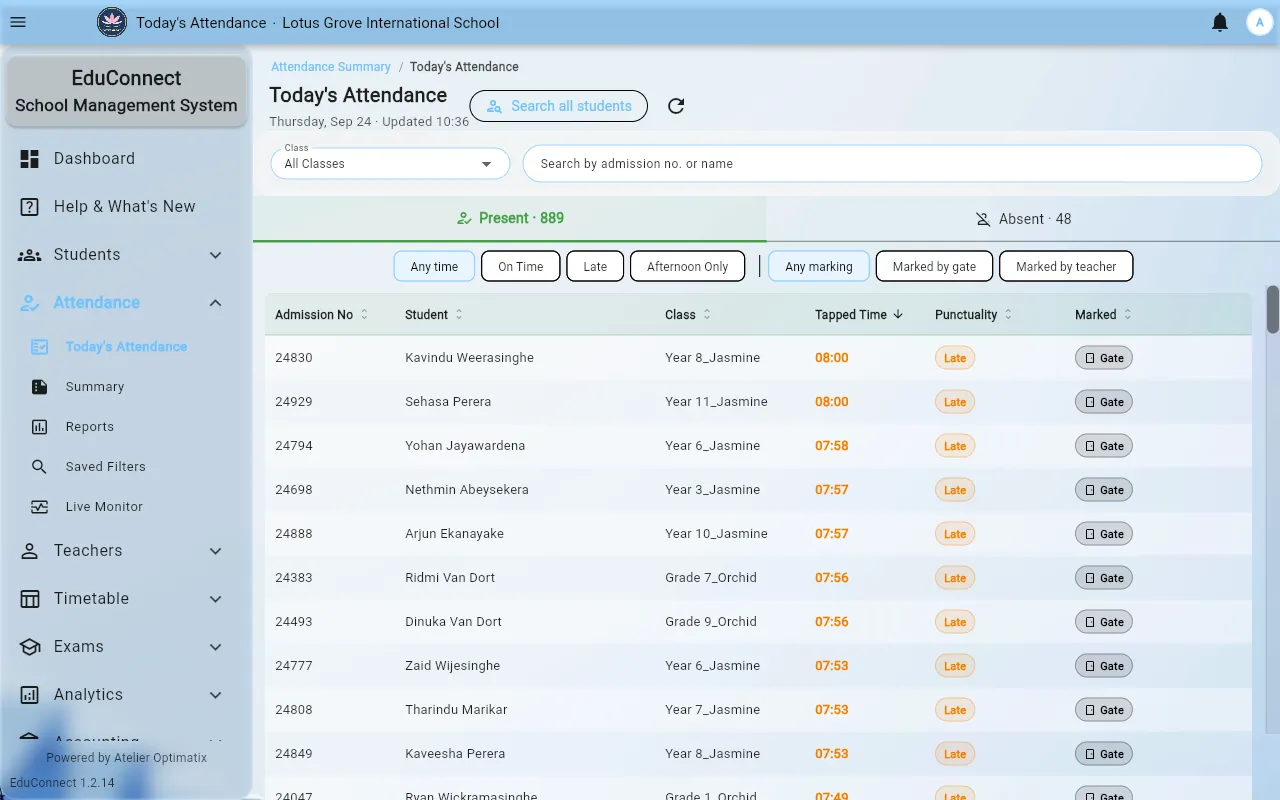
Attendance → Today's Attendance is the whole school on one page for today: a Present tab and an Absent tab, each with its count, and the time the list was last updated.
- Narrow it with the Class picker, or search by admission number or name.
- On the Present tab, filter by when the student arrived — Any time, On Time, Late or Afternoon Only — and by how they were marked — Marked by gate (a card scan) or Marked by teacher. Each row shows the tap time and whether it counts as late.
- Search all students looks up any student, present or not.
Late is decided by the institute's late cut-off in Settings, the same rule every other attendance screen uses. Teachers see this page as Attendance in their drawer.
From a class's own attendance page, Today's list jumps straight here with that class selected.
Live Monitor
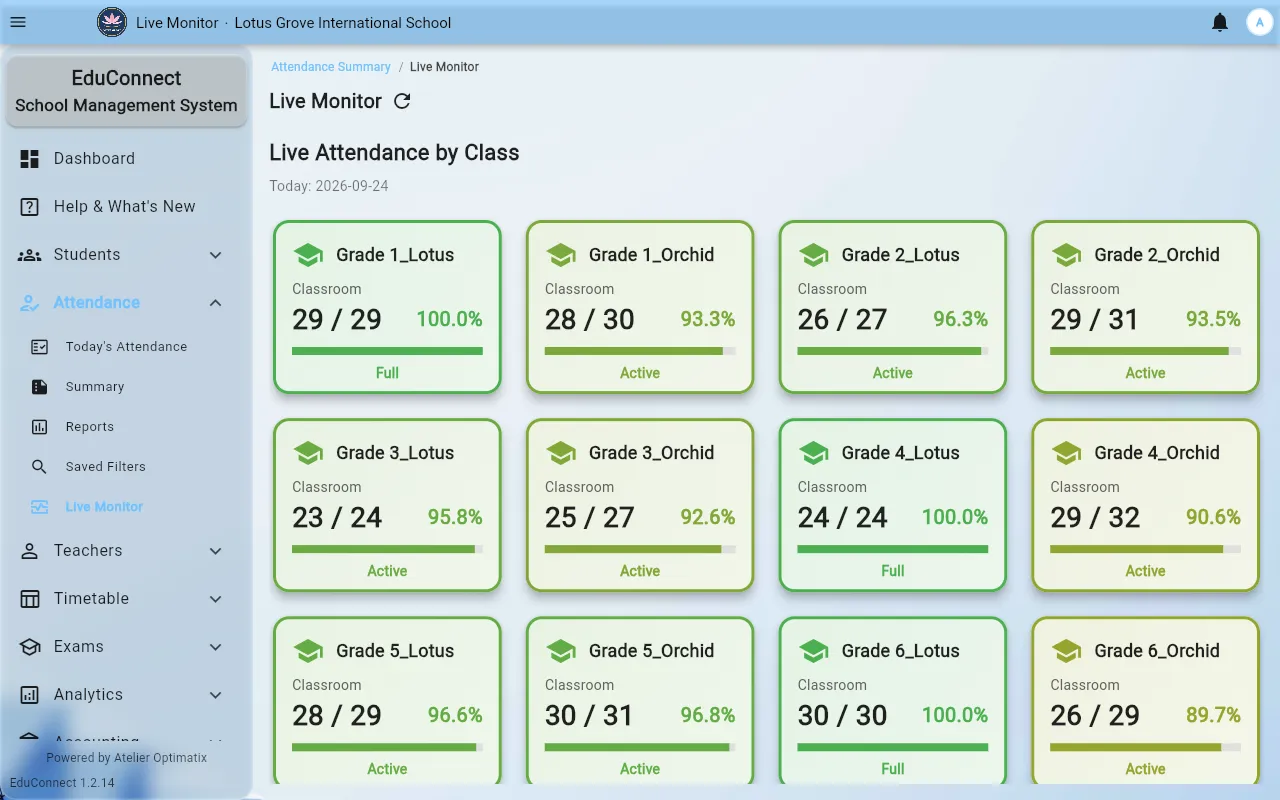
Attendance → Live Monitor shows scans as they arrive. It is a morning screen: leave it up while students are arriving and you can see the gate working — or see immediately that it isn't.
Use it for:
- Confirming a reader is actually registering scans, before a hundred students walk past a dead one.
- Watching late arrivals as they come in, rather than reconstructing them afterwards.
If nothing appears at all during arrivals, treat it as a device problem rather than an attendance one and check the reader.
Saved filters
Attendance → Saved Filters is for the questions you ask repeatedly — students below 80% this term, this year group's absences this week. Build the query once, save it, and re-run it instead of rebuilding it each time.
This is the difference between a report you run monthly and one you actually run. If you find yourself setting the same dropdowns every Monday, save it.
The rest of the Attendance group
- Today's Attendance — as above.
- Summary — the institute-wide view, drilling down to a class.
- Reports — the printable output.
- Saved Filters — as above.
- Live Monitor — as above.
Related