Tutorial: Set Holidays, Terms and Working Days
Telling the system which days don't count — and why attendance reports look wrong until you have.
Last updated Sat Sep 05
Attendance percentages are only as good as the calendar behind them. A holiday that isn't configured is a day the whole school appears to have skipped.
Working days
In Administration → Settings, set which days of the week your institute runs, then Save Working Days. Everything else is calculated against this, so do it before term starts.
Adding a holiday
- Open Administration → Holidays (or Manage Holidays from Settings).
- Select Add Holiday.
- Fill in:
- Title — what it is called on reports.
- Start and end date. Both are required — Title and date range are required. is the error if either is missing.
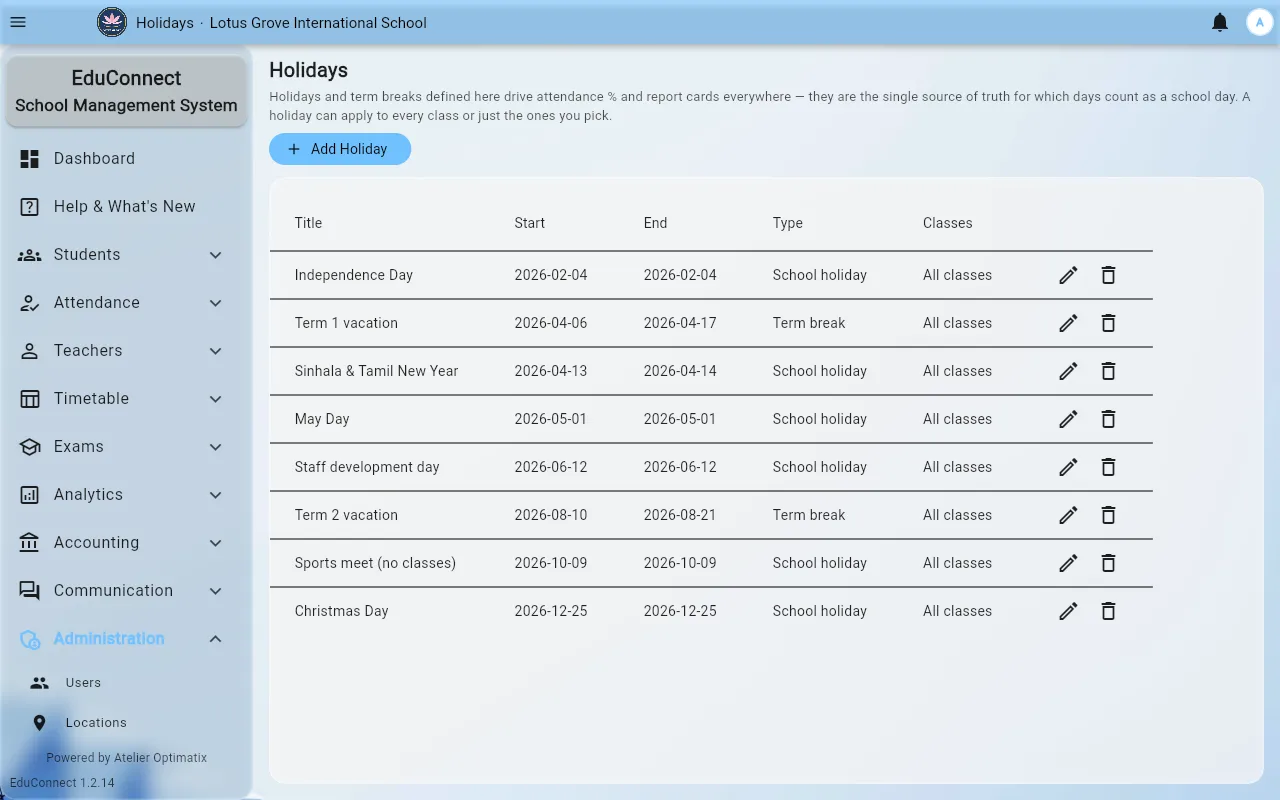
- Type — School holiday or Term break. Term breaks bound the terms that term attendance and progress reports are calculated over, so the distinction matters.
- Classes — leave empty for All classes, or pick specific ones. This is how you record a year group being away on a trip without marking the whole school absent.
- Save. You will see Holiday created.
The list shows every holiday with its title, dates, type and which classes it applies to. Delete confirms first. If it says No holidays yet. Add one to get started., nothing is configured — and every non-teaching day so far is being counted against your attendance figures.
Terms
Term dates are set in Administration → Settings (and, for a school group, centrally in the head office Configuration → Term Dates). Save them with Save Terms.
Get terms in before entering exam results: an exam sitting outside every configured term won't land in the term it belongs to.
Do this first
If attendance percentages look implausibly low, check this page before investigating anything else. Unconfigured weekends, holidays and term breaks are by far the most common cause.
Related