Teachers: Your Profile and Password
Updating your own details and photo, changing your password, and the fields only an administrator can change.
Last updated Sat Sep 26
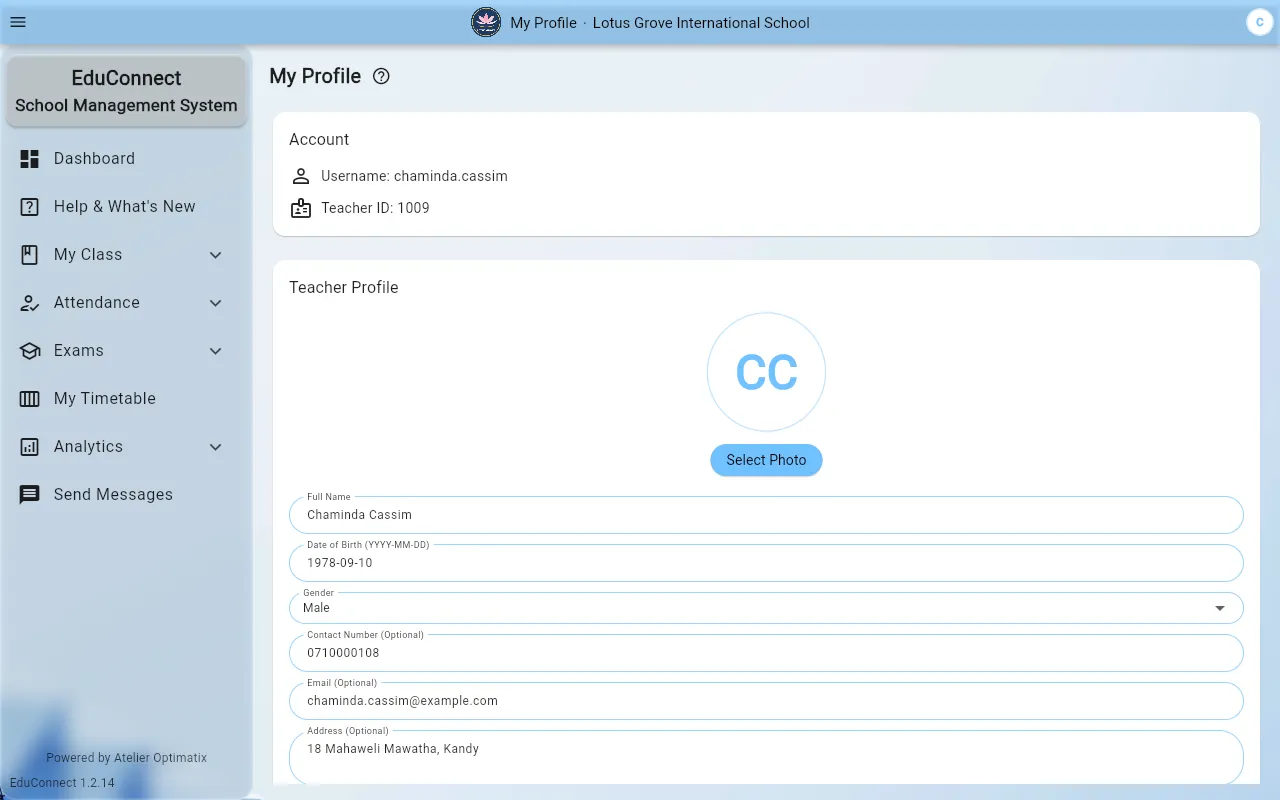
My Profile — in the account menu at the top right of every screen, and in the drawer on a phone — shows two things stacked: your Account — the username you sign in with, and your Teacher ID — and your Teacher Profile, the record everything else keys off.
Updating your details
- Open the account menu (your badge, top right) and select My Profile.
- Edit the fields under Teacher Profile — contact number, email, address and the rest.
- Select Save Changes.
Your photo
Select Photo uploads one; Remove Photo takes it off. This is the picture that appears next to your name in class lists and staff directories.
Changing your password
Under Change Password, enter the new password and confirm it, then select Change Password.
Do this the first time you sign in with a password an administrator gave you — a reset password is displayed on screen to whoever performed the reset, so it should not stay in use.
What you can't change here
Your username and Teacher ID are shown but not editable, and neither is the list of subjects you teach — that one has real consequences, since it decides which classes you can be assigned to and whether the timetable generator will ever schedule you. To change it, ask an administrator to edit your record from Teachers → Directory.
Related