Run an Admissions Intake
From publishing the prospectus to enrolling a student — pulling applications in from the portal, scoring them, taking the fee, and converting.
Last updated Sat Sep 05
An intake spans two systems: applicants use the admissions portal, staff work in the staff dashboard. This is the staff side end to end.
1. Publish the prospectus
Students → Prospectus (also reachable from Administration). This is what applicants read before applying, so it goes up before you announce the intake.
Applicants' view: Reading the Prospectus.
2. Applications come in
Applicants sign in with a one-time code, complete the form and submit. Once submitted, an application is locked to them — they cannot keep editing it. See Applying to a School.
3. Pull them into the dashboard
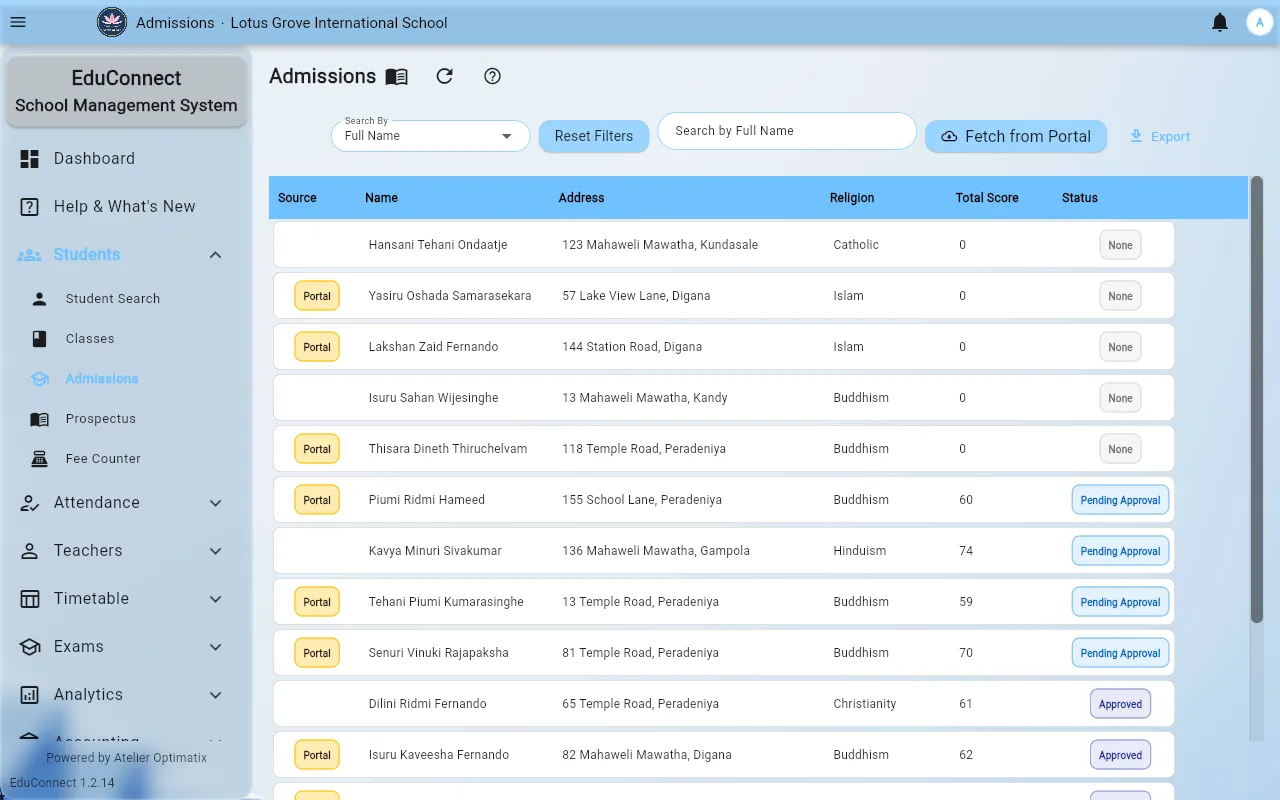
Open Students → Admissions and select Fetch from Portal. It reports how many were synced and how many skipped — skipped generally meaning already imported.
Sync regularly through an open intake rather than once at the end; the dashboard only knows about applications that have been fetched.
4. Review and score
The admissions list can be filtered and sorted by name, address, religion, total score and status. Open any row for the full application and its uploaded documents.
Total score is what you rank on. Whatever your criteria are, they end up as this number, so make sure it is being filled in consistently before you start comparing applicants.
Export the list — admission ID, name, address, religion and total score — for offline review or a selection meeting.
5. Take the application fee
Two routes, and they end in the same place:
- Online — the applicant pays by card in the portal. A pending status is not a failure; it resolves. See Paying Your Application Fee.
- At the office — cash, cheque or transfer, recorded at Students → Fee Counter (the same screen appears as Admission Fees under Accounting). See Paying at the School Office.
Admission fees land in the same ledger as everything else, so they flow into day close and reconciliation normally.
6. Convert to students
Accepted applicants become students. Have the classes ready first — see Add a Class — because a student needs one at enrolment, and the class cannot be changed afterwards by editing the record.
7. After the intake
- Check fee schedules cover the new classes.
- Issue ID cards — no RFID means no attendance.
- Parents register themselves against their child's Student ID — Registering as a Parent.
For a school group
Head office sees the whole group's intake at Reports → Admissions, but cannot open an individual branch's screens. See Head Office & Group Reporting.