Teachers: Read Your Class's Attendance
The day-wise, week-wise and term views of your class — what each answers, and which one to open for which question.
Last updated Sat Sep 05
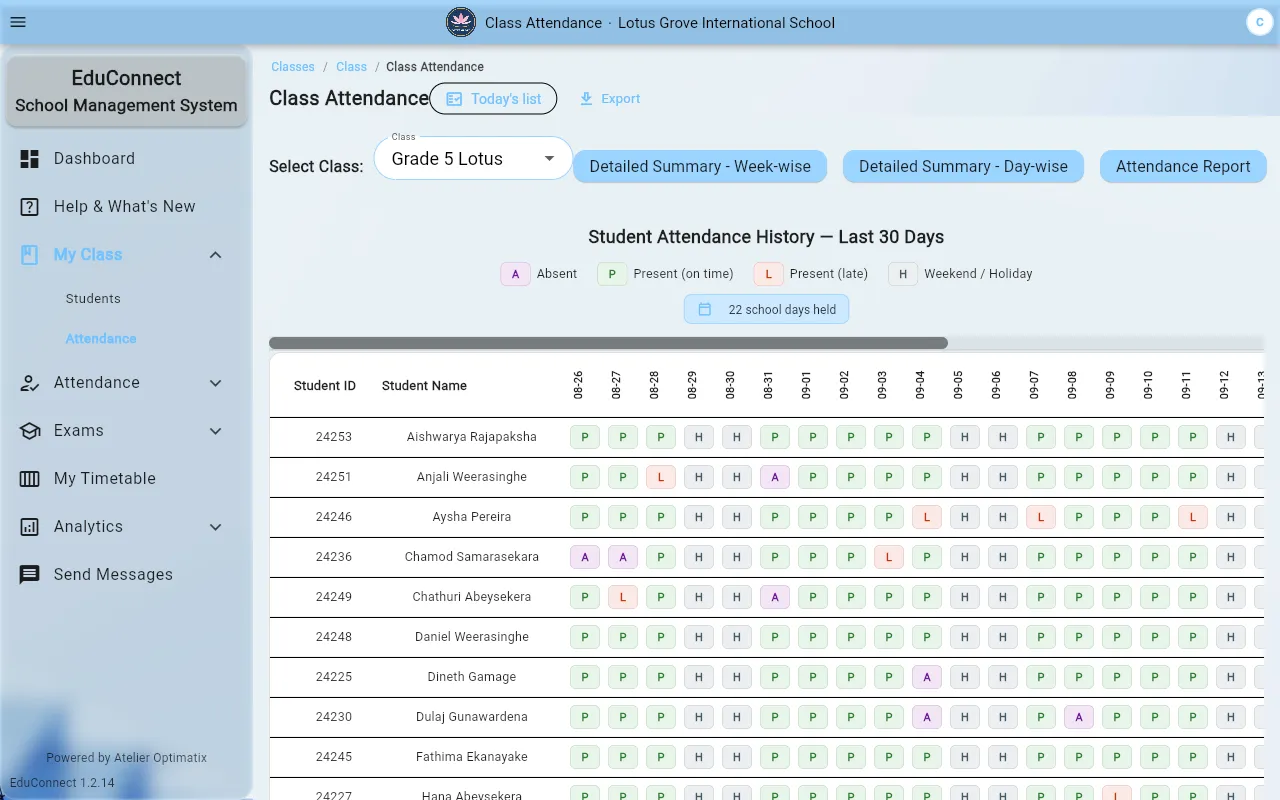
My Class → Attendance opens a dashboard for your class with three ways into the same data. They are not three reports; they are three zoom levels.
Which one to open
| Question | View |
|---|---|
| "Who was in on Tuesday?" | Day-wise Summary |
| "Who is drifting — missing the same day each week?" | Week-wise Summary |
| "Who is below the attendance threshold this term?" | Term Attendance |
| "I need something to print or hand over" | Attendance Report |
Day-wise Summary
One row per student, one column per day. This is the view for answering a specific question about a specific date, and for spotting the day the whole class dipped — a wet Monday, a public holiday that wasn't configured.
Week-wise Summary
Aggregates the same data by week. Patterns show up here that are invisible day by day: the student who is reliably out on Fridays, the fortnight someone quietly stopped coming.
If it says No Data Available, no attendance has been recorded for the period — which, at the start of a term, usually just means nobody has marked the register yet. No Students Found means something different: the class has no one enrolled in it.
Term Attendance
A Term Overview with the class's figures, then a Per-Student Breakdown with a Class Avg line to compare against. This is the view to use before a parents' evening, and the one that answers "is this student's attendance actually a problem, or does it just feel like it?"
Attendance Report
The printable, shareable version. Use it for anything leaving the system.
A reminder about what "absent" means
None of these views can distinguish a genuine absence from a register that was never completed — an unmarked student looks identical either way. If a day looks alarming, check whether it was actually marked before acting on it. See Mark Your Class's Attendance.
Related