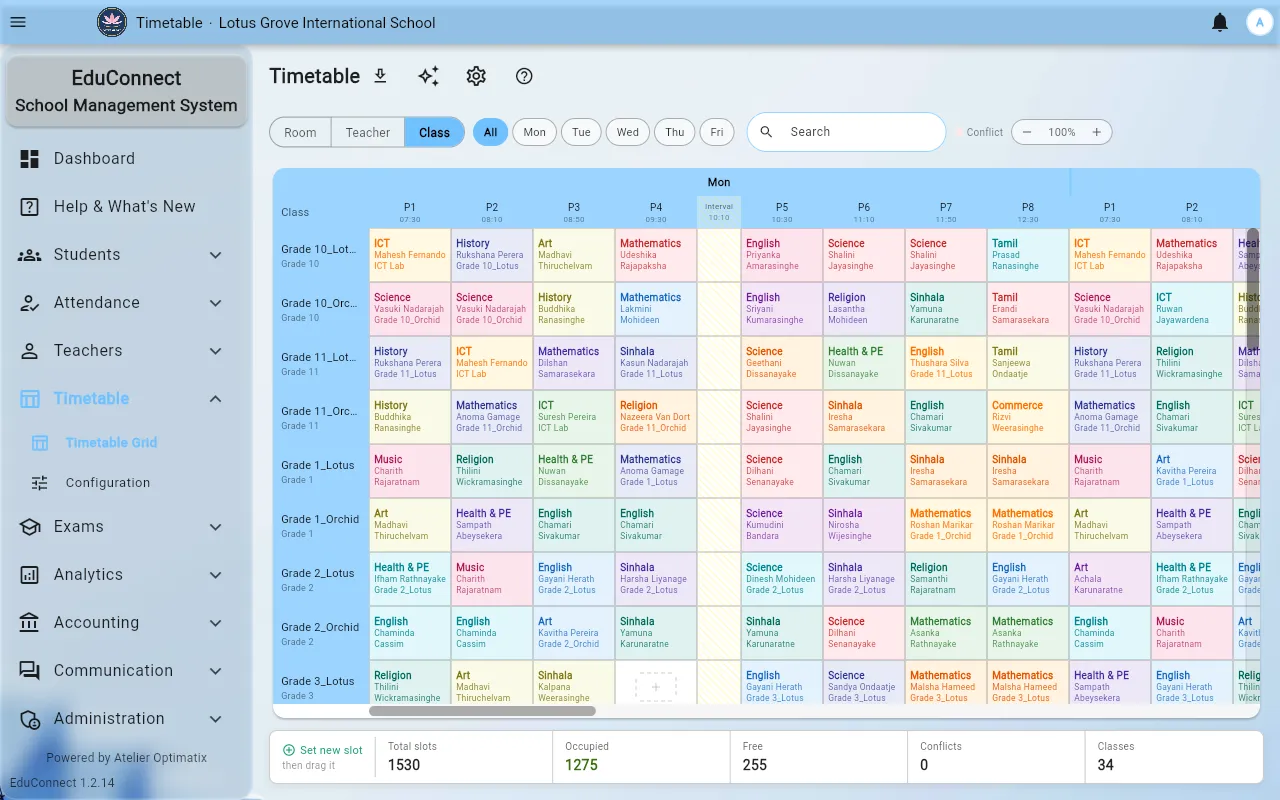
Tutorial: Generate the Timetable
Running the automatic timetable generator — the preflight checks, previewing before you commit, and reading the scheduled/skipped result.
Last updated Sat Sep 26
The generator places lessons into periods for you, respecting lessons-per-week, teacher availability and the daily and consecutive limits. It does not invent anything — it can only place what Class Subjects already says exists.
Before you start
Everything below must already be true. The generator checks the first two for you and refuses to run otherwise:
- A bell schedule exists.
- Class-subject assignments exist — with teachers.
- Teacher availability and limits are set in Timetable → Configuration → Teacher Constraints. Skip this and the generator assumes everyone is free all week.
Steps
Open Timetable → Timetable Grid.
Select Generate. The Generate Timetable dialog opens with two preflight rows at the top:
- Bell schedule configured (or Bell schedules configured: N if you have more than one)
- Class-subject assignments: N
If either fails you get Complete setup in Timetable Configuration before generating, and the Generate button stays disabled. Fix the setup rather than trying to work around it.
Choose the Scope:
- All classes — the normal choice for a fresh timetable.
- Selected classes only — then tick the classes. Use this when you are re-doing one year group and don't want the rest touched.
Decide on Replace existing slots:
- Off (default) — the generator works around what is already placed.
- On — existing slots in scope are deleted first. The dialog says so explicitly. This is the right choice for a genuine rebuild and the wrong one if a colleague has hand-placed anything.
Strongly recommended the first time: turn on Preview only (don't save). The button changes from Generate to Preview, and you get the full result without anything being written.
Run it.
Reading the result
The result sheet shows:
- a score as a percentage — how well the placement satisfied the constraints,
- Scheduled — lessons placed,
- Skipped — lessons it could not place,
- Total,
- a list of warnings explaining the skips.
Then three choices:
- Accept & Save — commit the result.
- Discard — throw it away and change something.
- View Timetable — look at the grid before deciding.
A preview run only offers you the look; nothing is saved either way.
When lessons get skipped
Skips are almost always a constraint that cannot be satisfied, not a failure of the generator. In rough order of likelihood:
- Not enough periods in the day for the lessons-per-week the curriculum demands. Either add periods to the bell schedule or reduce lessons/week.
- A teacher is over-committed — the same person is the only one assigned to a subject in too many classes.
- Teacher constraints are too tight — availability windows, max/day or max consecutive leave no legal slot.
- A subject has no teacher in Class Subjects, so there is no one to place.
Read the warnings, fix the cause, and re-run in preview until the skipped count is acceptable.
Finishing by hand
The generator gets you most of the way; the last few slots are usually manual. In the grid:
- Select a cell to set the lesson there, or place a whole subject group where classes split into options at the same time.
- Copy day repeats one day onto others, and tells you how many slots copied and how many were skipped as conflicts — nothing is silently overwritten.
- The grid refuses any change that double-books a teacher or a room, and highlights the clash.
- Filter the view by Room, Teacher or Class, and by day, using the toolbar.
Related
- Building the Timetable — the concepts behind these screens
- Your Timetable as a Teacher