Tutorial: Set Up the Bell Schedule
Defining the periods that make up a school day — the first thing the timetable needs, and the one it cannot be generated without.
Last updated Sat Sep 26
The bell schedule is the shape of the day: how many periods there are, when each starts and ends, and which of them are breaks. Nothing in Timetable works until it exists.
You need: access to Timetable → Configuration.
Steps
- Open Timetable → Configuration and select the Bell Schedule tab. (The page opens on Import Data.)
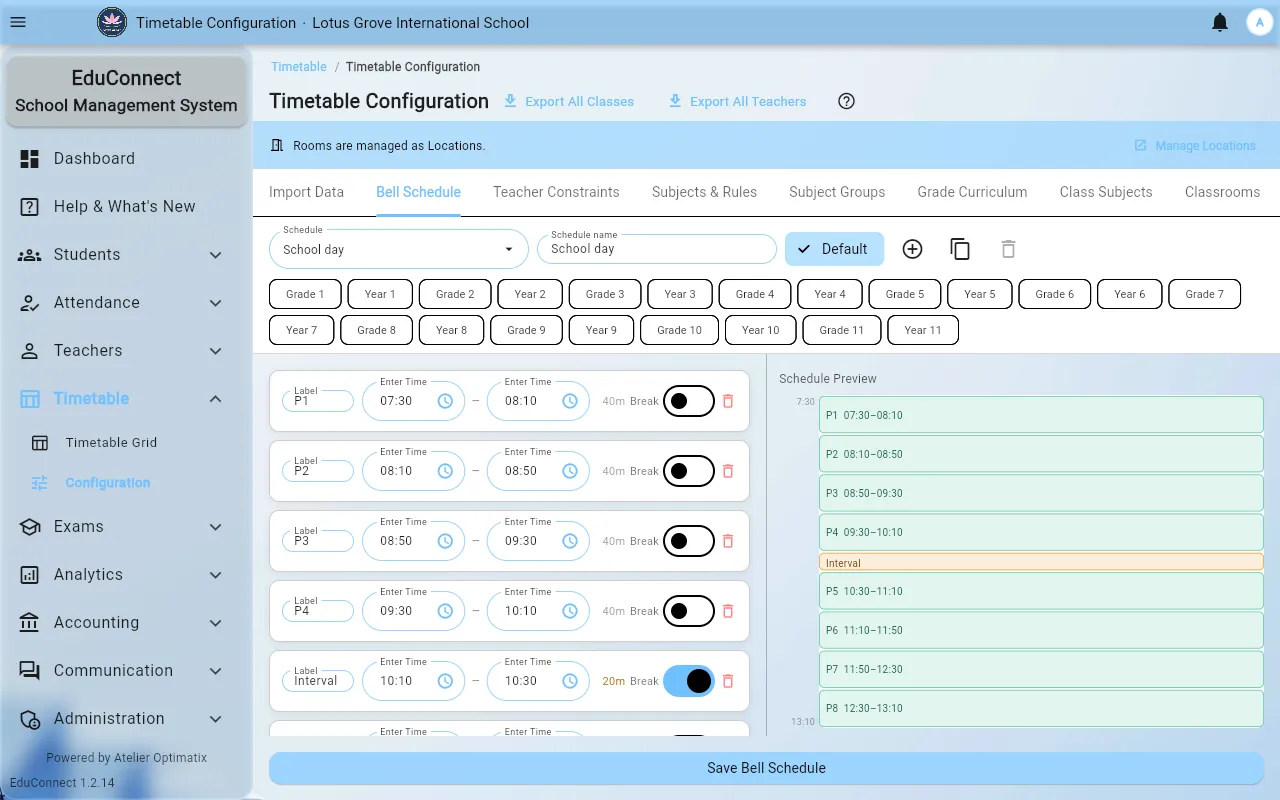
- Select Create Bell Schedule and give it a name. Under the name, tick the grades that follow this schedule — a grade already on another schedule shows which one it is assigned to.
- Add periods with Add Period. Each period has:
- a label — pre-filled as
P1,P2, … and editable to whatever you call them, - a start and end time,
- a Break switch — turn it on for intervals and lunch. Break periods are still part of the day, but nothing is ever scheduled into them.
- a label — pre-filled as
- Watch the Schedule Preview underneath as you go. It draws the day back to you and flags problems — overlapping times, a period that ends before it starts — inline, so fix them here rather than after saving.
- Mark one schedule as Default. That is the one used for any class that isn't explicitly on another.
- Select Save Bell Schedule. You should see Bell schedule saved.
More than one schedule
You can keep several — a normal day and a half day, or different shapes for junior and senior sections. Duplicate schedule copies the one you are looking at as a starting point. Exactly one is the default; the rest are selected explicitly. When you generate the timetable the preflight check tells you how many schedules it found.
Deleting
Deleting a schedule is immediate and confirms first. Anything currently placed against it will need re-placing, so prefer editing an existing schedule over deleting and recreating.
What to do next
The rest of Timetable → Configuration can wait until you actually generate:
- Teacher Constraints — when each teacher is available, and their limits (default: max 6 lessons a day, max 3 consecutive, minimum gap 0).
- Subjects & Rules and Subject Groups — how subjects behave, and which run as a set of options at the same time.
- Grade Curriculum and Class Subjects — what each grade and class is taught, and by whom.
- Classrooms — the rooms lessons can be matched to.
- Import Data — bulk-load setup instead of entering it screen by screen.
Next in the chain: Grade Curriculum.