EduConnect Tutorials admin staff
Tutorial: Send a Message to Parents
Selecting the classes to message, checking the confirmation before it goes, and where to find what was already sent.
Last updated Sat Sep 26
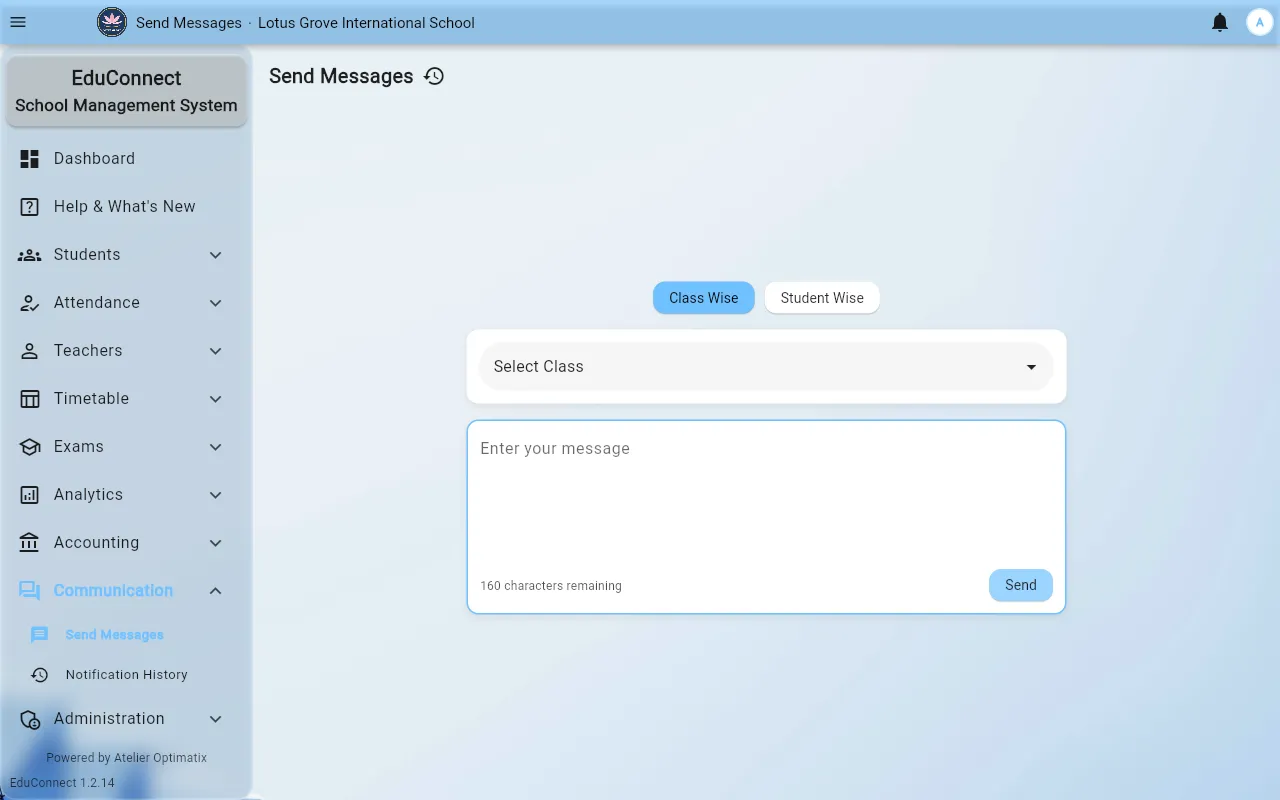
Communication → Send Messages is the broadcast tool — closures, reminders, event notices. It is in the web and Windows versions of the dashboard; the Android and iPhone apps leave it out.
Choose Class Wise to message whole classes, or Student Wise to pick individual students. A message is limited to 160 characters (one SMS), with a counter under the text box.
Steps
- Open Communication → Send Messages.
- Choose Class Wise or Student Wise, then pick the classes or students.
- Write the message.
- Select send. The Confirm Message Sending dialog lists every class the message is going to, one per line.
- Read that list. It is the last check before a message reaches families, and it is the step that catches the wrong class being selected.
- Confirm.
Before you send
- Messages cannot be recalled. There is no unsend.
- A student whose record has no contact number simply receives nothing — no error, no warning in the confirmation. If a class's coverage matters, check contact numbers are filled in first.
- Attendance SMS is configured separately in Administration → Settings and sends automatically; it is not related to this screen.
What was sent before
Communication → Notification History lists previous messages. Check it before sending — a duplicate reminder an hour after a colleague's is the most common avoidable mistake here.
Related
- Add a Student — where contact numbers come from