EduConnect Tutorials staff admin
Tutorial: Close the Day
Reconciling counted cash against what the system expected, closing the day, and what reopening one means.
Last updated Sat Sep 05
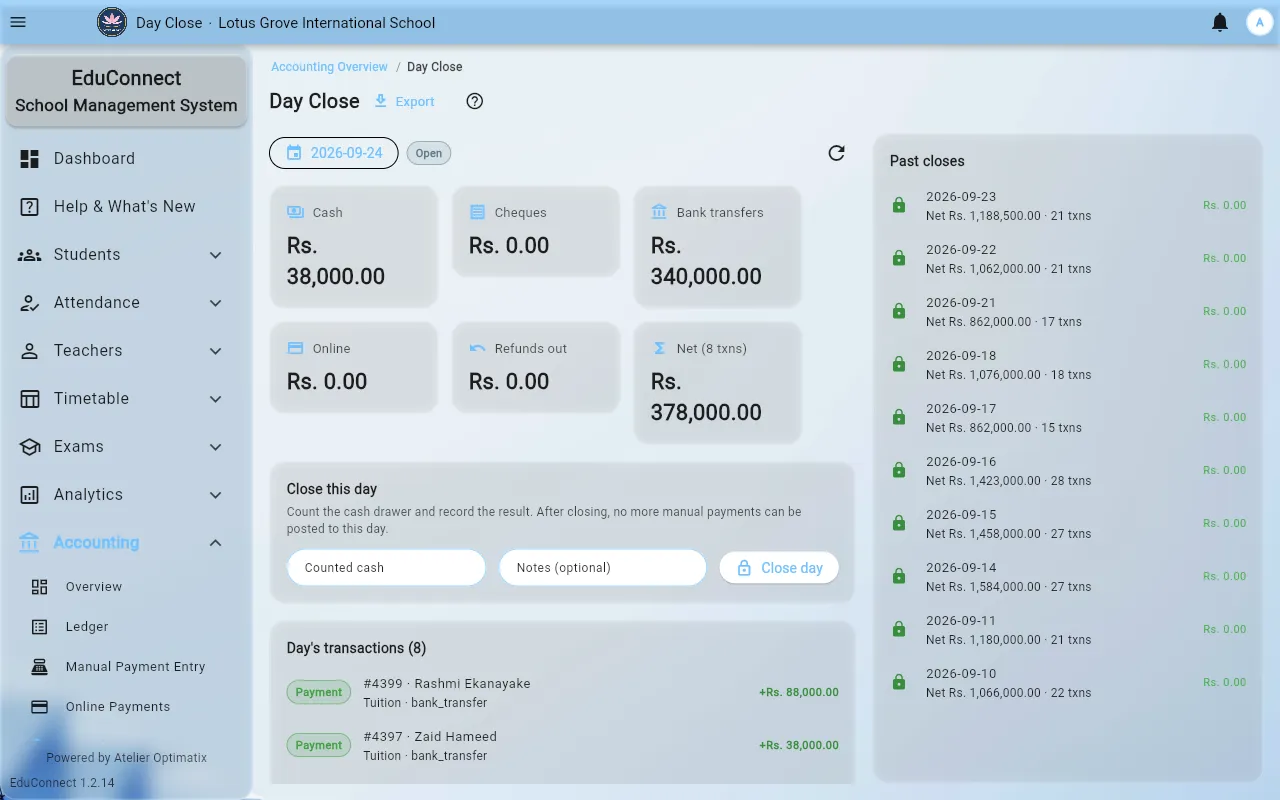
Day close is the end-of-day cash check: the system tells you what it thinks is in the drawer, you count what actually is, and the difference is recorded rather than argued about later.
You need: access to Accounting → Day Close. Do it after everyone has finished recording payments for the day.
Steps
- Open Accounting → Day Close and select the day.
- Review the day's transactions listed on the screen. If it says No transactions on this day, there is nothing to close — check you have the right date before assuming a problem.
- Count the cash and enter the counted figure.
- Select Close day.
- The confirmation shows Expected cash and Counted cash side by side. This is your last look at the discrepancy before it is recorded. If they don't match, cancel and find out why before closing — a missing receipt is much easier to trace today than next week.
- Confirm.
Reopening a day
A closed day can be reopened, and past closes are listed on the same screen. Reopening exists for genuine corrections — a payment recorded against the wrong day, a miscount discovered immediately — not as a routine step. Every close and reopen is recorded.
Where this sits in the month
- Payments are recorded through the day.
- Day close each evening.
- Reconciliation periodically, to catch charges and ledger entries that have drifted apart.
- Invoices issued from Accounting → Invoices.
Related