Tutorial: Add a Student
Enrolling a student into a class, why the form looks different at every institute, and the two fields that must be unique.
Last updated Sat Sep 05
You need: an existing class to put the student in — see Add a Class — and permission to create students.
Steps
- Open Students → Classes and open the class the student is joining.
- Select Add Student. (You can also reach the same form from Students → Student Search.)
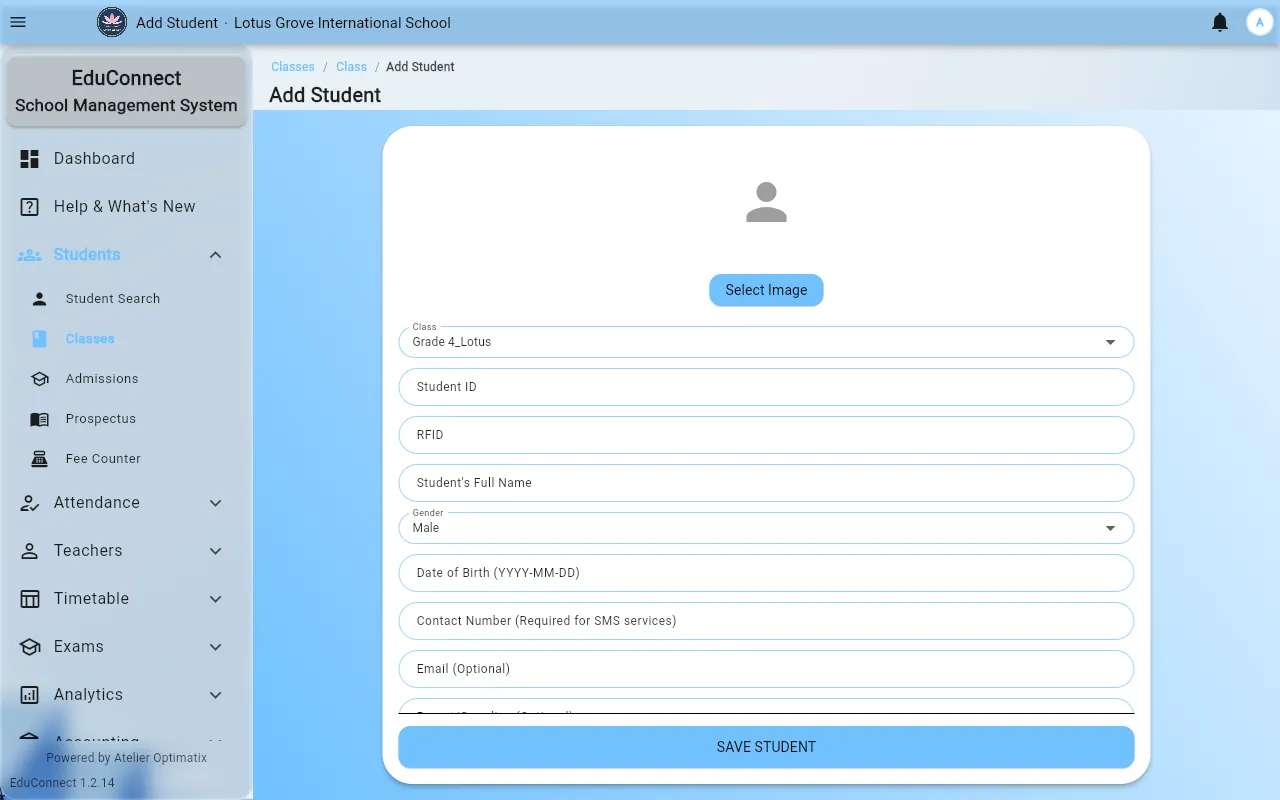
- Fill in the form. The fields you see depend on your institute (see below), but these are the ones that behave specially:
- Student ID — required, digits only, and unique across the institute. If the ID is already taken the field tells you so as you type. You cannot change it later by editing the student, so decide your numbering scheme before you start enrolling.
- RFID — the number on the student's attendance card. Also digits only, also checked for duplicates. Leave it empty if cards are issued later; attendance simply won't scan until it is filled in.
- Student's Full Name — letters, spaces and full stops only.
- Date of Birth — a date picker, stored as
YYYY-MM-DD. - Class — pre-filled with the class you came from. Like Student ID, it is read-only once the student exists; moving a student between classes is a separate action, not an edit.
- Contact Number — optional, but attendance SMS and payment reminders go to this number, so a student with no number silently receives nothing.
- Add a photo if your institute uses them — this is what appears on ID cards and in class lists.
- If the student has a sibling already enrolled, use the sibling picker to link them. Search by Student ID or name. Sibling links are what family discounts key off.
- Select Save.
Why your form looks different from the screenshots
The Add Student form is configured per institute. Which fields exist, which are required, what they are labelled, and what they will accept all come from your institute's own field definition — which is why one school asks for NIC number, house and ethnicity while another asks for none of them.
Two consequences worth knowing:
- If a field you need is missing, it can be switched on for your institute. It is a configuration change, not a new feature.
- A field marked optional here may be marked required at your institute, and vice versa.
Editing and removing
Open the student from Students → Student Search or from the class roster. Everything is editable except Student ID and Class. Delete Student asks for confirmation and removes the record outright — for a student who has simply left, prefer whatever your institute's leaving process is over deleting, because deleting takes their attendance and results history with them.
Related
- Import Students from Excel — for more than a handful
- Managing Students, Classes and Substitutions