EduConnect Tutorials admin staff
Tutorial: Create an Exam
Setting up a term, midterm or special exam so classes and subjects can have results entered against it.
Last updated Sat Sep 05
An exam is the container results are entered against. Create it before anyone starts marking.
Steps
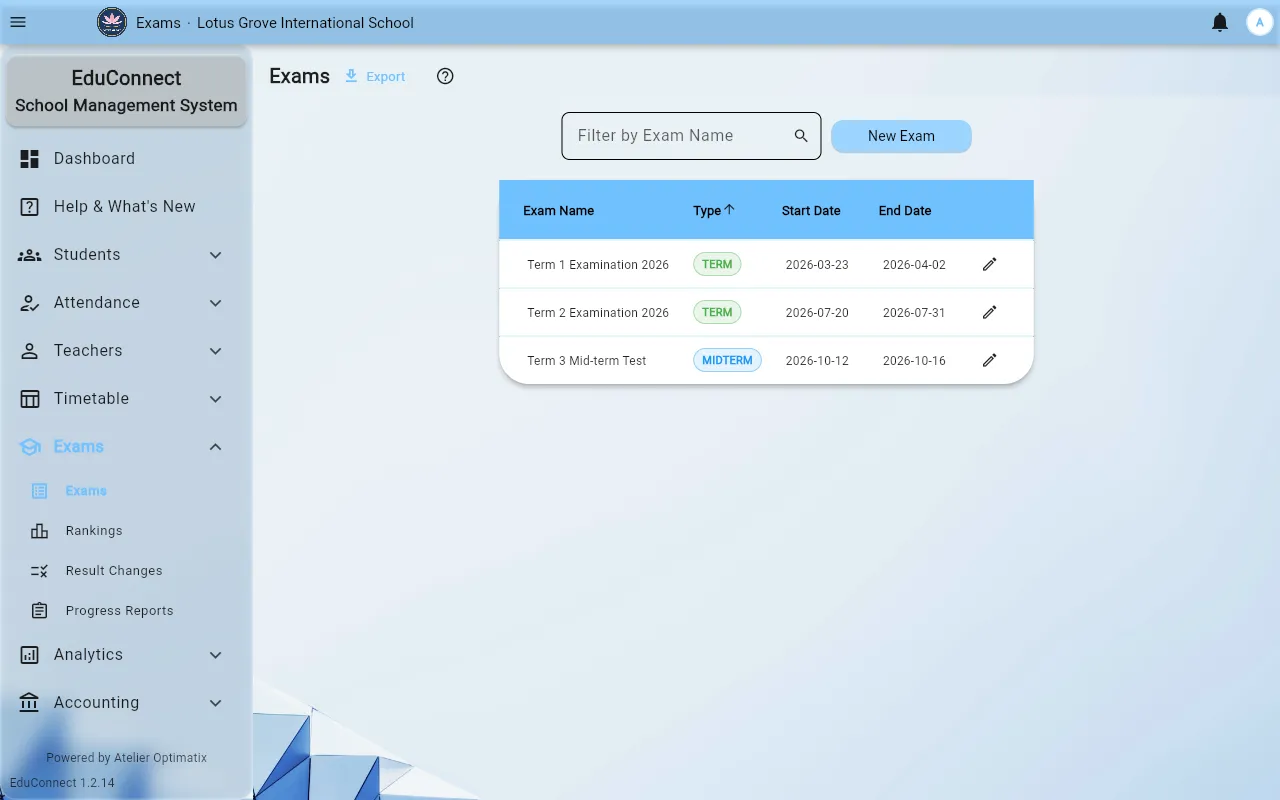
- Open Exams in the side drawer.
- Select New Exam.
- Fill in:
- Exam Name — what everyone will see in dropdowns and on reports. Include the year if you run the same exam annually (
Term 1 2026, notTerm 1). - Exam Type — one of TERM, MIDTERM or SPECIAL. This is not cosmetic: progress reports and term rankings are built from TERM exams, so a term exam typed as SPECIAL will not appear where you expect it.
- Date — via Pick Date.
- Exam Name — what everyone will see in dropdowns and on reports. Include the year if you run the same exam annually (
- Select Save.
The exam now appears on the Exams dashboard, and classes can be opened under it.
What to do next
- Enter results, class by class and subject by subject — or upload them from a spreadsheet.
- Check Exams → Rankings once enough subjects are in.
- Review any Exams → Result Changes raised against marks that are already saved.
Related