Tutorial: Write and Publish Progress Reports
Building a class's termly reports from saved marks, adding the written ratings, and the one-way step of publishing them to parents.
Last updated Sat Sep 05
A progress report pulls a term's marks together with the written assessment, and — once published — is what parents see in the parent portal.
You need: the term's exam results entered, and access to Exams → Progress Reports.
Steps
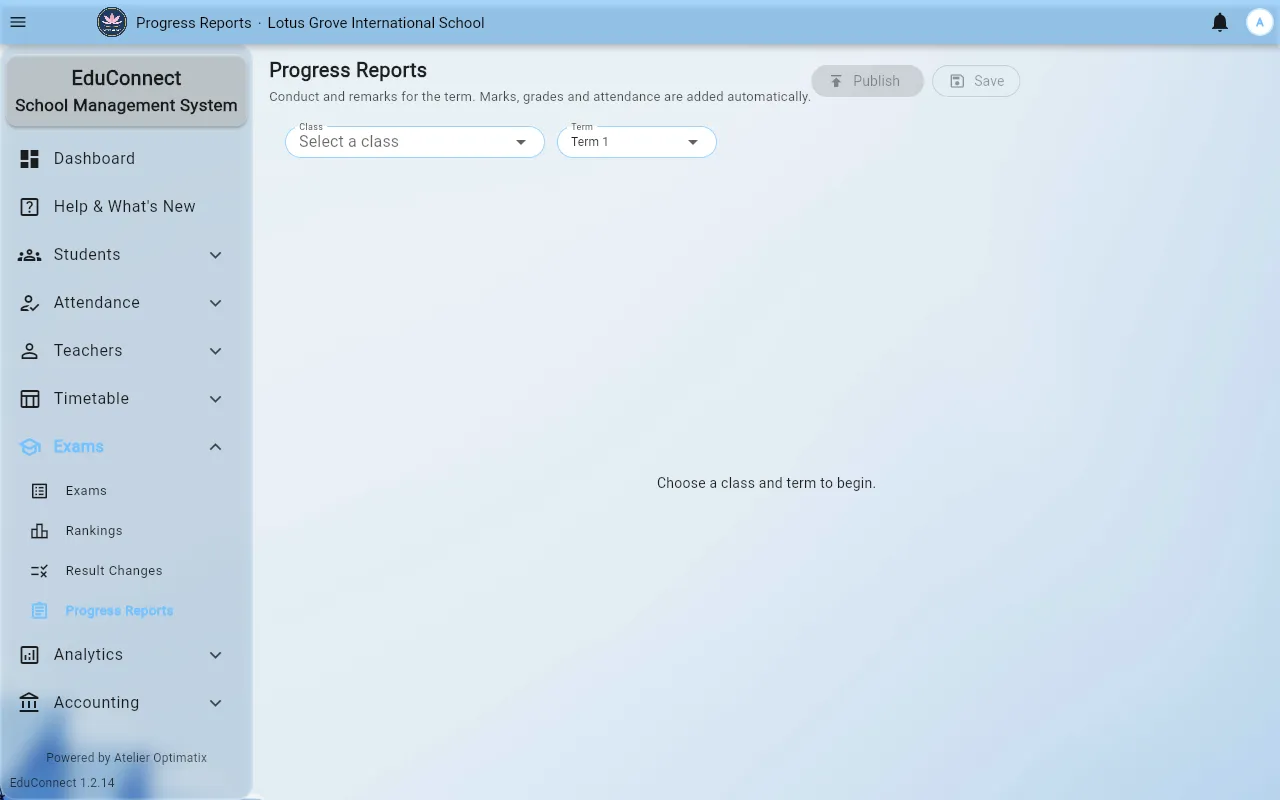
- Open Exams → Progress Reports.
- Choose a class and a term. Until you do, the screen says Choose a class and term to begin.
- The class's students load with their marks already filled in from the exams. If you get That class has no students, check the class roster rather than the exam.
- Work down the list filling in the ratings and comments. Fields left empty show Not rated — which is a valid choice, not an error, for anything your institute doesn't assess.
- Rows you have touched but not yet saved are flagged unsaved. Don't leave the screen while that marker is showing.
- Save your work.
Publishing
Publish is the step that makes the reports visible to parents. It confirms first — Publish term N reports? — because it changes what families can see.
Treat publishing as the end of the process, not a save button:
- Publish once the whole class is complete, not student by student.
- Check the ratings read the way you want a parent to read them first.
- Corrections after publishing are visible to anyone who already opened the report.
What parents see
Published reports appear in the parent portal alongside the handbook. Parents can acknowledge a report, which is how you tell who has actually read it. See Progress Reports & the Handbook.
Related