Tutorial: Issue and Replace ID Cards
Managing the blank card pool, uploading a card design, and issuing a temporary card when someone loses theirs.
Last updated Sat Sep 05
ID cards are also attendance cards — the number on the card is the RFID on the person's record, which is what makes their scans register. So a lost card is an attendance problem, not just an identity one.
You need: access to Administration → ID Cards.
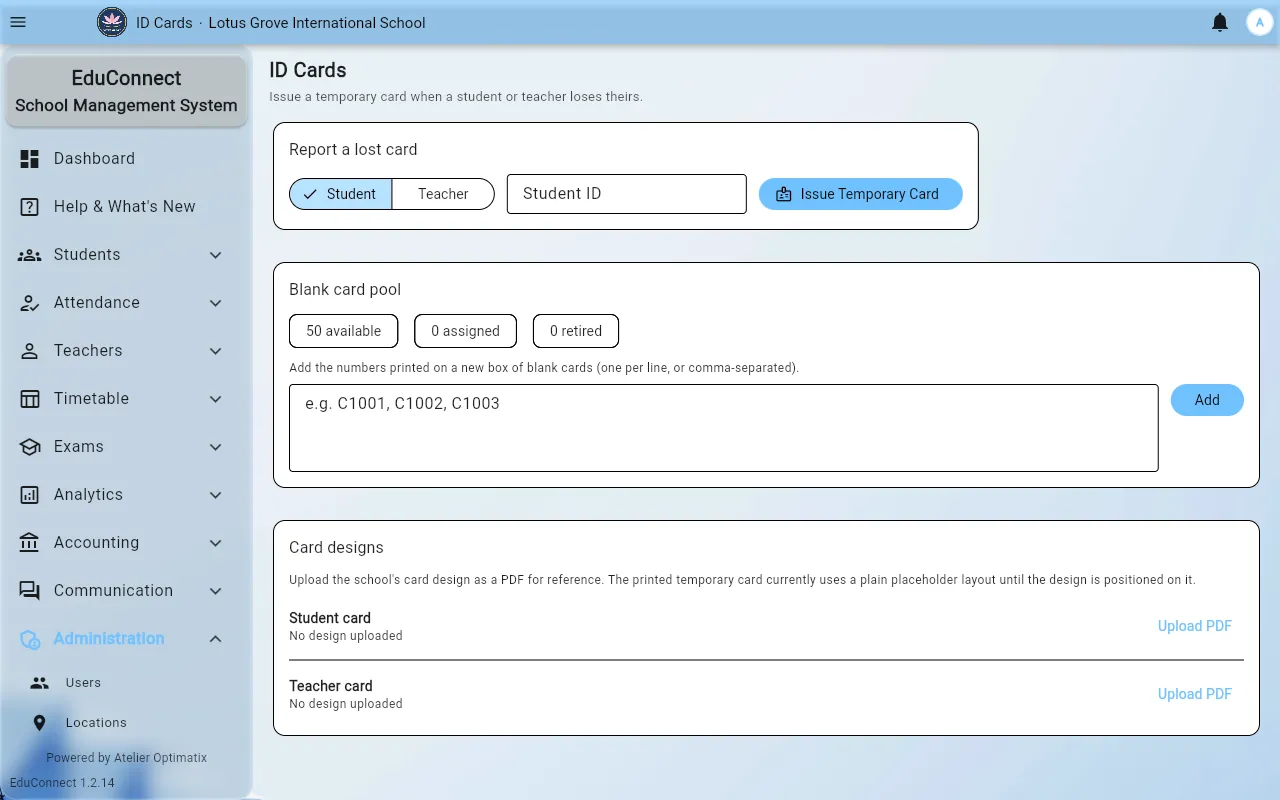
The blank card pool
The pool is the stock of unissued cards. Add cards to it as you receive them from your supplier; the screen tells you what is left. Issuing draws from this pool, so an empty pool is why issuing fails.
Card designs
Under Card designs, upload your institute's design as a PDF — separately for Student card and Teacher card. This is held for reference, so whoever prints has the right artwork; the printed card itself is produced from it.
Upload PDF adds one, Replace swaps it, and removal is immediate (Card design removed).
Replacing a lost card
- Open Administration → ID Cards and choose Report a lost card.
- Pick Student or Teacher.
- Enter the Student ID or Teacher ID.
- Select Issue Temporary Card.
- Print the card.
The temporary card carries a new number, and that number becomes the person's active RFID. Their old card stops working — which is the point, since it is presumably in someone else's hands.
If someone's attendance stops working
Check their card before anything else. The two usual causes are a lost card that was never reported, so scans are going to a dead number, and a record that never had an RFID filled in at all — see Add a Student.
Related