Tutorial: Add a User and Grant Access
Creating staff and parent logins, resetting a password, and using Access Control to decide what each account can open.
Last updated Sat Sep 05
Two screens, two jobs
- Administration → Users — who has a login.
- Administration → Access Control — what that login can open.
Creating a user does not by itself grant much. Both steps are needed.
Adding a user
- Open Administration → Users. It has two tabs: Staff and Parents.
- On Staff, select Add User.
- Fill in the account details and link it to the person's existing record — for a teacher, the teacher record you already created.
- Save.
Parent accounts mostly create themselves — parents register from the portal with their child's Student ID and verify by SMS or email. The Parents tab is where you find and manage the result. See Registering as a Parent.
Resetting a password
- Find the user and select Reset PW.
- Either type a New Password and Confirm Password, or let the system generate one.
- The new password is then displayed on screen so you can pass it on.
That display is the whole security model for a reset, so: read it out or hand it over directly, don't email it, and tell the person to change it at their first sign-in from My Profile.
Deleting a user
Delete confirms first. It removes the login, not the underlying teacher or student record — which is usually what you want for someone who has left.
Access Control
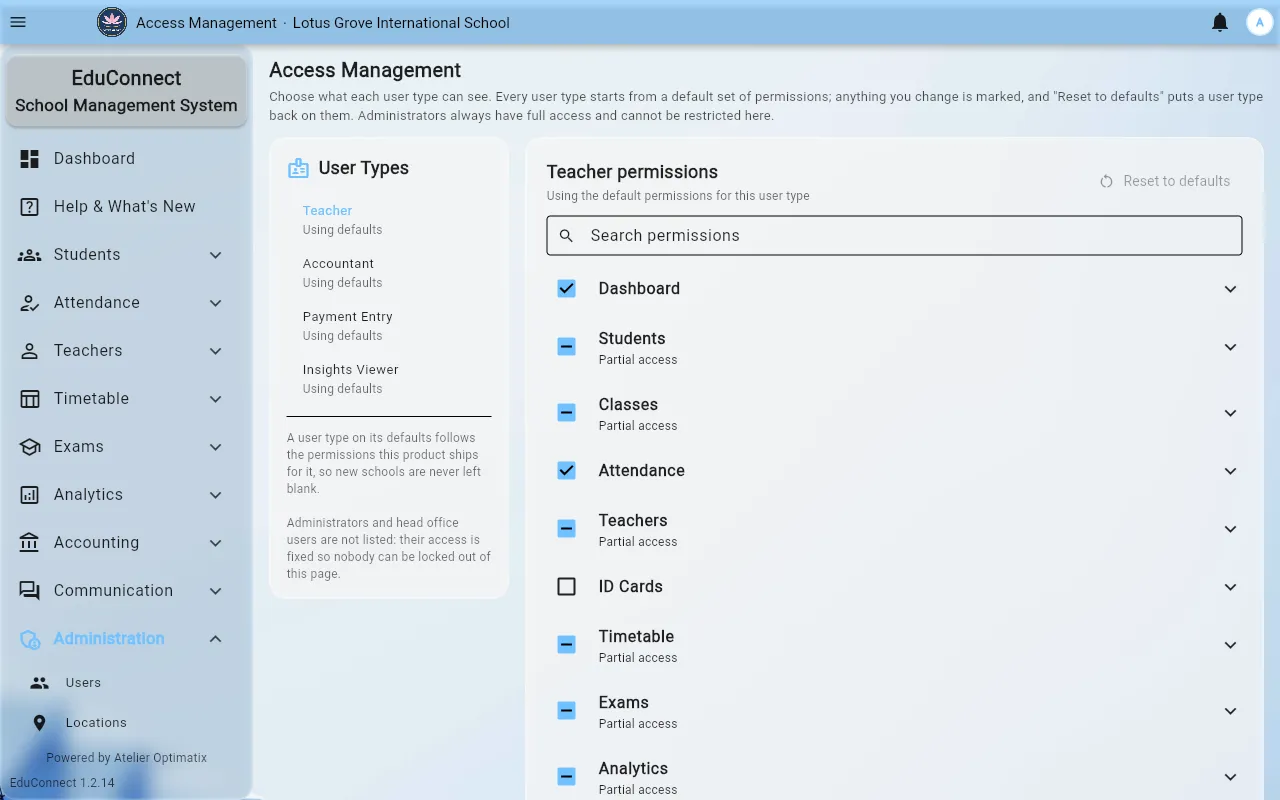
Administration → Access Control is a matrix of screens against roles. It is what makes two teachers at the same school see different drawers.
- Open Administration → Access Control.
- Turn individual screens on or off. A role with some but not all of a group shows as Partial access.
- A banner warns You have unsaved permission changes until you either Save changes or Discard them. Don't leave the screen with it showing.
Reset to defaults puts a role back to the shipped permission set. That is the fastest way out of a configuration nobody can explain any more, but it discards every customisation for that role — note what you changed before pressing it.
Debugging "I can't see that screen"
Almost always access, not a fault. The drawer hides what you cannot open rather than greying it out, so a missing menu entry is the expected symptom. Check Access Control for that person's role first.
Related