EduConnect Tutorials admin
Tutorial: Add a Teacher
Creating a teacher record, assigning the subjects they teach, and the separate step that gives them a login.
Last updated Sat Sep 05
A teacher record is not a login
These are two separate things, and doing only the first is the most common reason a new teacher "can't sign in":
- The teacher record — the person, their subjects, their attendance, their timetable. Created here.
- The user account — the username and password they actually sign in with. Created in Administration → Users, see Users and Access.
Create the teacher record first, then the account.
Steps
- Open Teachers → Directory.
- Select Add Teacher.
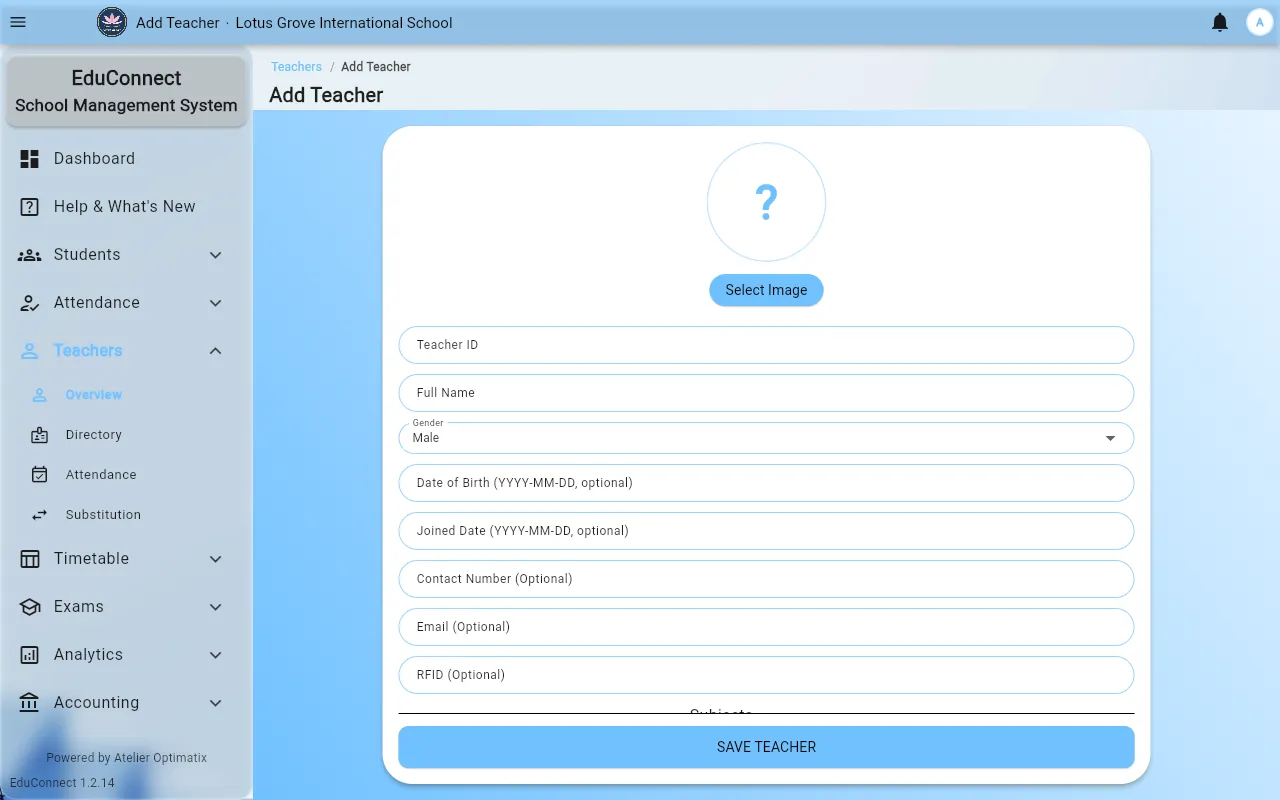
- Fill in the form:
- Teacher ID — required and unique. The field warns you with Duplicate Teacher ID detected if it is taken.
- Full Name — required.
- Gender — required.
- Date of Birth and Joined Date — both optional, both
YYYY-MM-DD. - Contact Number, Email, Address, Religion, Ethnicity, Nationality — all optional.
- RFID — optional. This is the card the teacher scans for their own attendance. Without it, their attendance has to be recorded another way.
- Add the subjects they teach. This is the field that matters most downstream: the timetable generator and the substitution suggestions both only ever propose a teacher for a subject listed here. A teacher with no subjects will never be auto-scheduled.
- Add a photo if your institute uses them.
- Select SAVE TEACHER.
Then give them a login
- Open Administration → Users.
- Select Add User and create the account, linking it to the teacher record you just made.
- Check what the account can reach in Administration → Access Control — see Users and Access.
Editing and deleting
Open the teacher from Teachers → Directory and use Edit. DELETE TEACHER confirms first, and removes the record along with its attendance history — for someone who has left, check with your institute before deleting rather than after.
What to do next
- Assign them to classes as a subject teacher in Class Subjects.
- Set when they are and aren't available in Timetable → Configuration → Teacher Constraints, before you generate the timetable.
- Make them a class teacher via Edit Class Teacher on a class — see Add a Class.
Related