Tutorial: Record a Payment at the Counter
Taking a cash or cheque payment against a student's outstanding fees and issuing the receipt.
Last updated Sat Sep 05
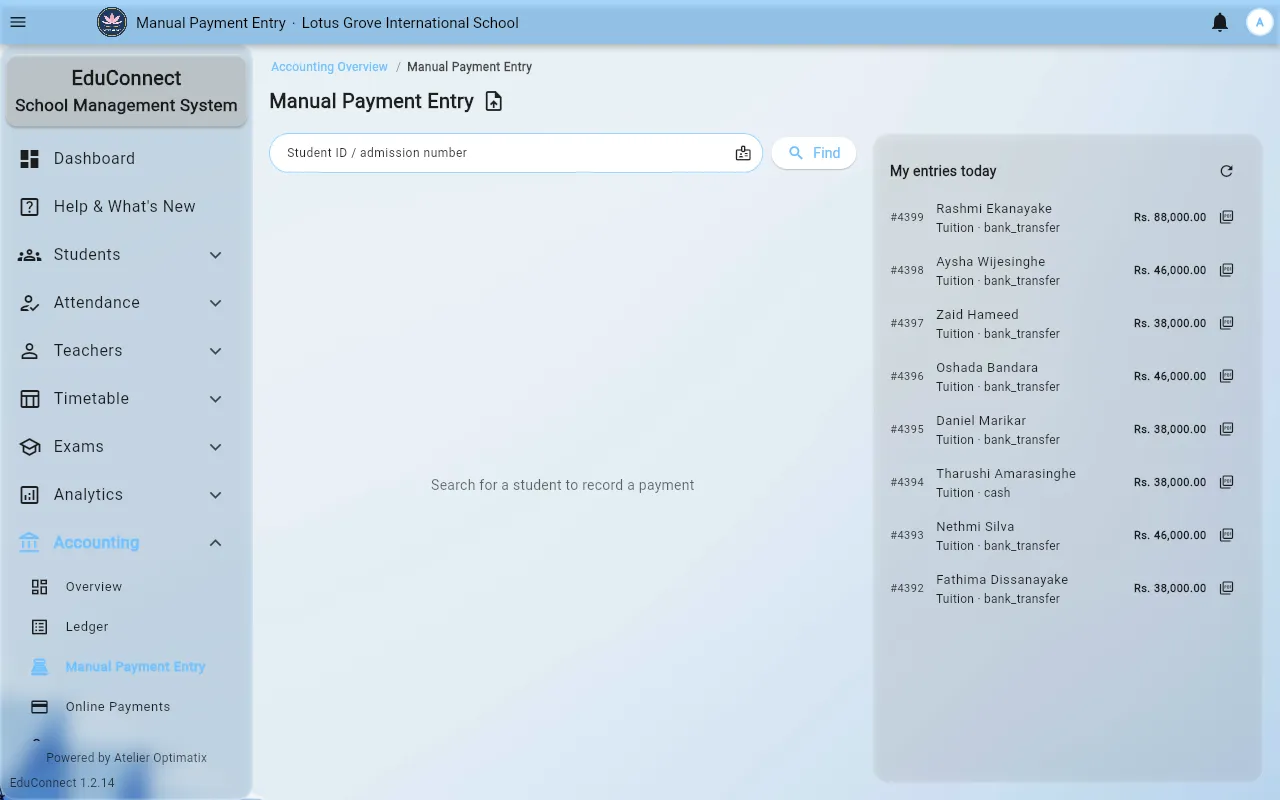
This is the counter workflow — a parent in front of you, paying by cash, cheque or bank transfer. Card payments made by parents themselves land in Accounting → Online Payments instead and need no data entry.
You need: access to Accounting → Manual Payment Entry, and fees that have been set up.
Steps
- Open Accounting → Manual Payment Entry.
- Enter the student's ID or name and select Find. Clear resets the screen for the next parent.
- The student's fees load in two lists:
- Pending fees — what is outstanding, each with its due date. If it says Nothing outstanding — all fees settled, there is nothing to take.
- Settled — what has already been paid, with the date and method.
- Find the charge being paid and select Receive.
- In the dialog, check the amounts. Where a discount applies you will see the Original amount alongside what is actually due — take the amount due, not the original.
- Set the received on date if the money came in earlier than today. It defaults to today.
- Record the payment method.
- Attach an image if your institute wants one — a photo of the cheque or the transfer slip. Remove clears it if you pick the wrong file.
- Select Confirm amount.
You will see Payment recorded — receipt #n. That receipt number is the parent's reference; give it to them.
If you get Payment failed, nothing was recorded — do not re-enter it as a second payment until you have confirmed the first did not go through.
Checking your own work
My entries today lists everything you have taken during this session, with receipt numbers. Use it to check a total before handing over, and at the end of your shift before day close.
Related