Tutorial: Write and Publish the Student Handbook
Building the handbook section by section, saving drafts, and publishing a version to parents.
Last updated Sat Sep 05
The handbook is the document parents read in the portal alongside their child's progress reports — rules, term dates, uniform, contacts.
You need: access to Administration → Handbook.
Steps
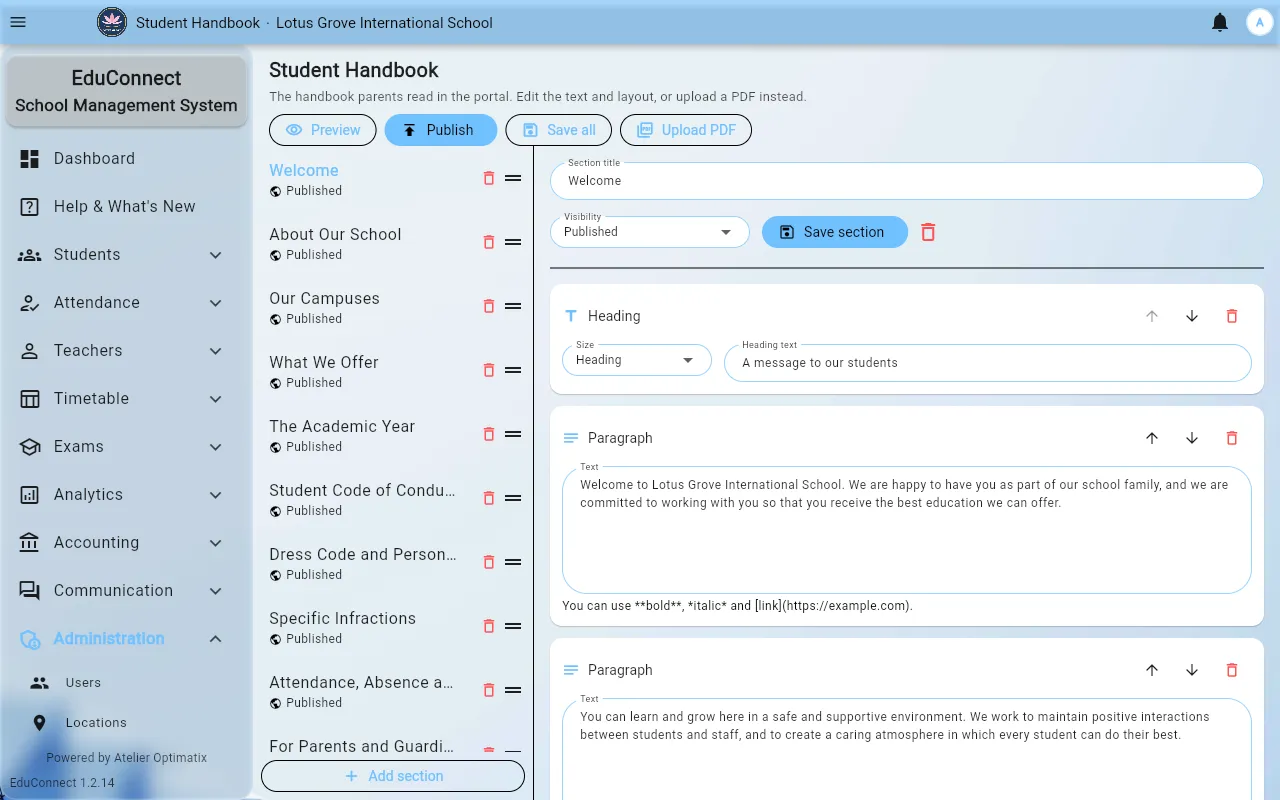
- Open Administration → Handbook.
- Select New section. Give it a title first — saving without one gets you Give the section a title before saving.
- Write the section's content in the block editor.
- Save the section (Section saved.), or save all sections at once when you've been working across several.
- Preview before publishing.
- Select Publish, and confirm Publish the handbook?
You get Handbook published (version n) — the handbook is versioned, so each publish is a distinct version rather than an overwrite.
Drafts and publishing
Saving and publishing are separate on purpose. Everything you save is a draft; parents see nothing until you publish. If you try to publish with unsaved edits you get Save your changes before publishing.
So the working pattern is: write and save freely over days, publish once when the whole document is ready.
Deleting a section
Delete "section"? warns that this cannot be undone. It is a real deletion — there is no undo and no draft copy left behind. If you might want the text back, move the content out first.
What parents see
The published handbook appears in the parent portal. See Progress Reports & the Handbook.
Related