Teachers: Your First Week
What a teacher account can see, the five screens you will actually use daily, and the order to learn them in.
Last updated Sat Sep 26
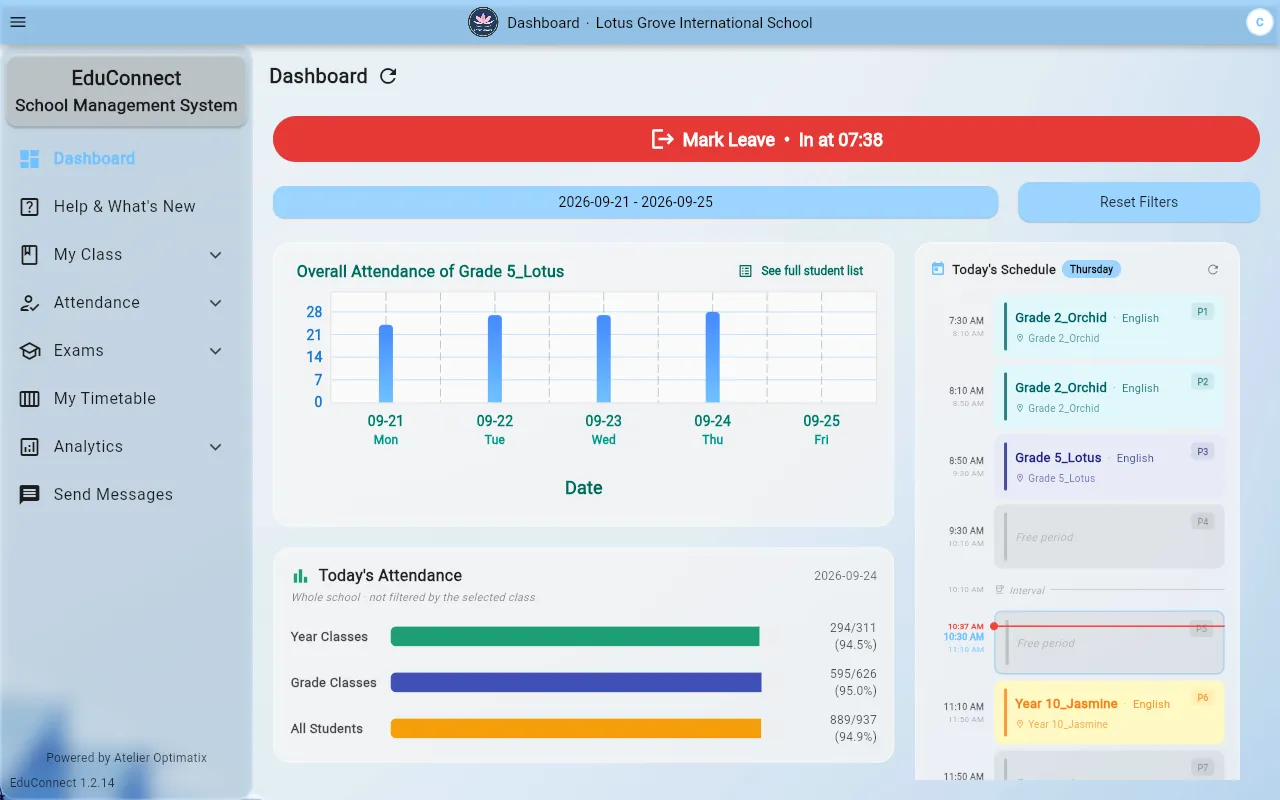
A teacher account sees a much shorter drawer than an admin's, and that is deliberate — nearly everything you need is in five places.
Your drawer
| Entry | What it is |
|---|---|
| Dashboard | Where you land |
| My Class → Students | Your class roster — and where you mark attendance |
| My Class → Attendance | Your class's attendance history: daily, weekly, term |
| My Timetable | Your own week, read-only |
| Attendance → My Attendance | Your own attendance record |
| Account menu → My Profile | Your details and photo (the badge at the top right; also in the drawer on a phone) |
Depending on what your institute has granted you, you may also see Exams (for entering results), Progress Reports, Students, and Send Messages.
My Class only appears if you are set as a class teacher. If you teach subjects across several classes but own none of them, you won't have it — that is correct, not a fault.
The order to learn them in
- Marking attendance — the one thing you will do every single morning.
- Reading your class's attendance — day-wise, week-wise and term views, and which to use when.
- My Timetable — including how substitutions show up.
- Entering exam results when exams come round.
- Progress reports at the end of term.
If a screen is missing
Access is granted per screen, not per role, so two teachers at the same school can legitimately see different menus. If something this guide describes isn't in your drawer, ask whoever administers your institute — it is a permission, and it can be switched on.
Related