Tutorial: Add a Class
Creating a class from the Classes screen, what each of the four fields is for, and what to do next once the class exists.
Last updated Sat Sep 05
A class is the container almost everything else hangs off — students, attendance, the timetable grid, exam results and fee assignments are all addressed by class. Create the class first.
You need: access to Students → Classes, and permission to create classes.
Steps
- Open Students → Classes in the side drawer.
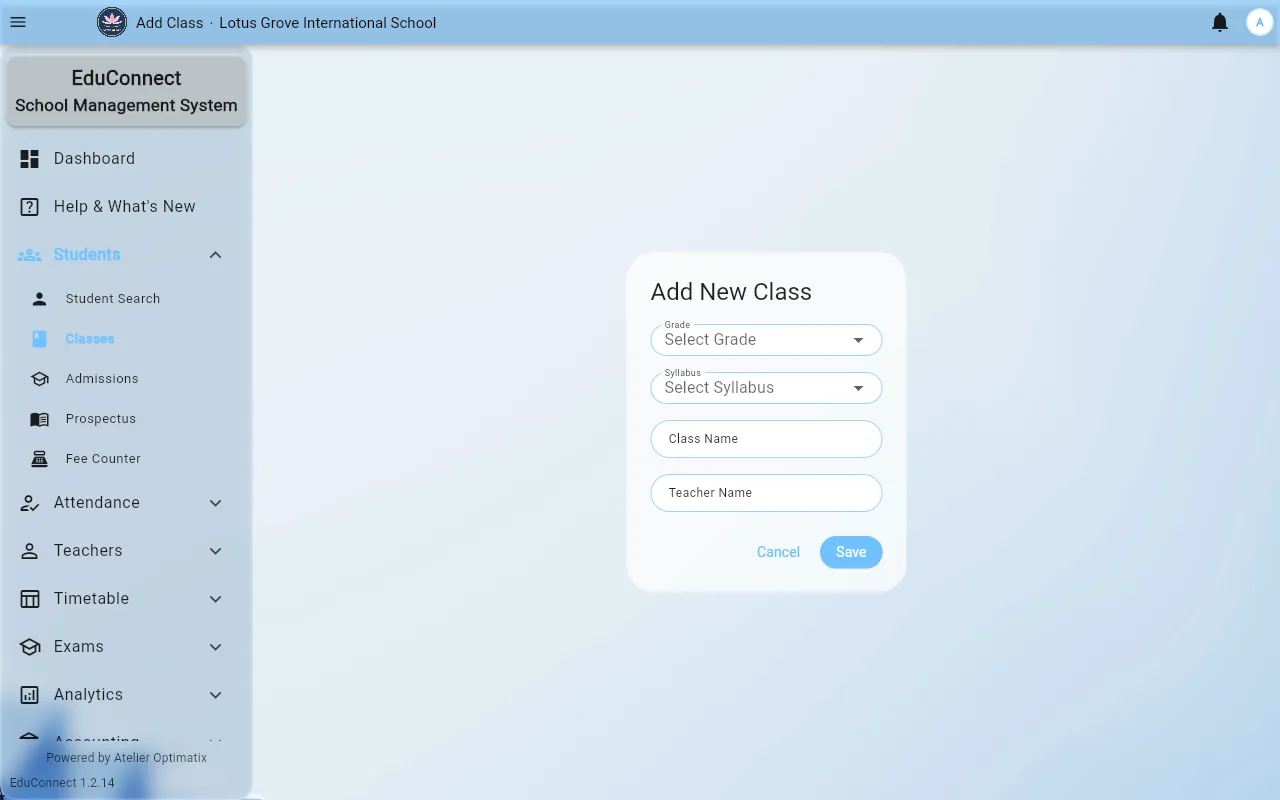
- Select Add Class. The Add New Class dialog opens.
- Fill in the four fields:
- Grade — pick from the list. This is what groups classes together for Grade Curriculum and for grade-wide reporting, so it has to be right.
- Syllabus — pick from the list. Classes on different syllabuses in the same grade are reported separately.
- Class Name — required, and this is the class's identifier throughout the system. Short and conventional is better than descriptive:
10-A,Grade 3 Blue. It is what you will see in every class dropdown from now on. - Teacher Name — optional. You can leave it empty and set the class teacher properly later.
- Select Save.
You should see Class added successfully, and the new class appears in the list. If you get Failed to add class. instead, the most common cause is a class name that already exists.
Setting the class teacher
The Teacher Name field on the dialog is free text — it is a label, not a link to a teacher record. To actually assign the teacher who owns the class:
- Open the class from Students → Classes.
- Use the ⋮ More options menu on the class screen.
- Choose Edit Class Teacher and pick the teacher.
This matters: the class teacher is who gets the class in My Class, and who can mark its attendance. See Taking Attendance as a Teacher.
What to do next
Once the class exists, in roughly this order:
- Add students to it — one at a time, or import them from Excel.
- Assign its subjects so it can be timetabled.
- Include it in fee setup if fees differ by class.
Related