Shared staff teacher
Taking Attendance as Staff
How teachers mark daily attendance and how access to a class is decided.
Last updated Sun Aug 30
Where to find it
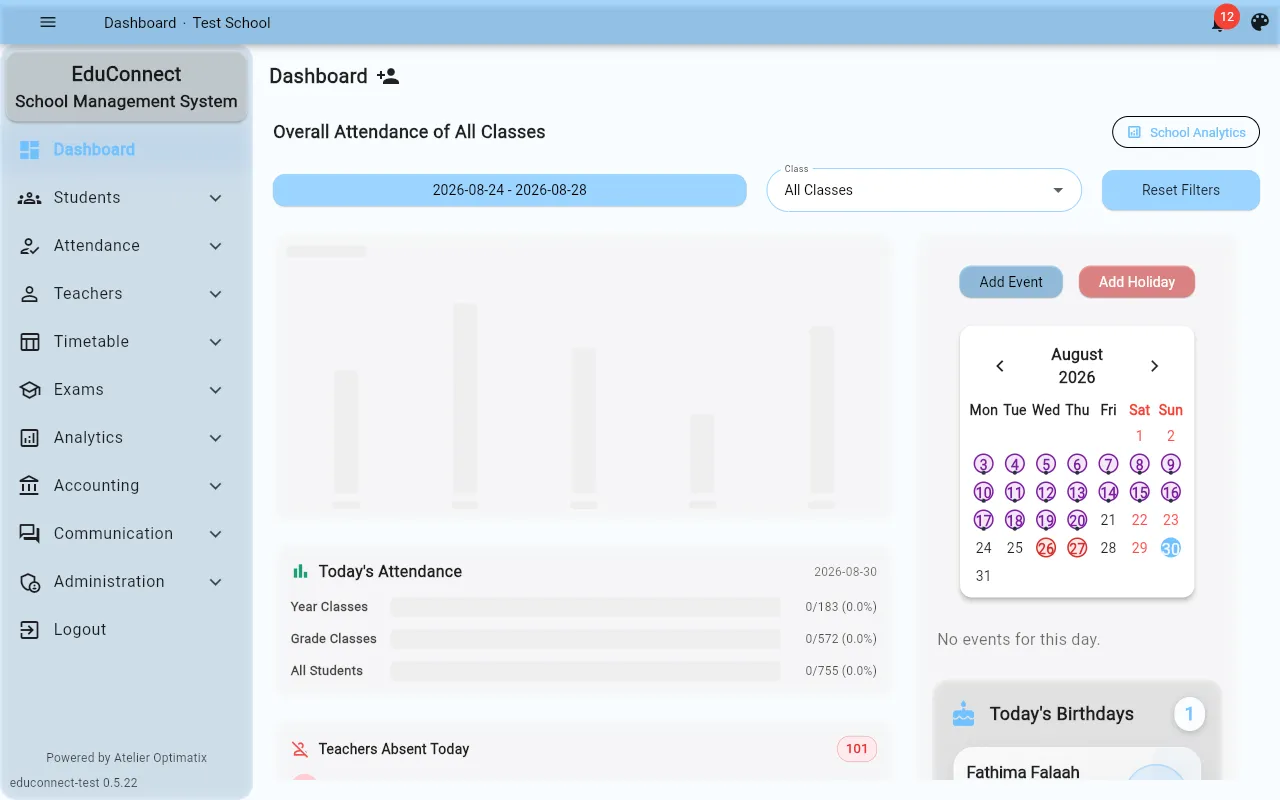
Attendance lives under the My Class and Attendance sections of the staff dashboard. This dashboard is shared by every institute — whichever institute you're logged into, the screens are the same; only the terminology changes (see Institute Branding for why some institutes say "School" and others say "Kindergarten").
Marking attendance
- Open My Class → Attendance to see today's roster for a class.
- Mark each student present, absent, or late, then save.
- Live attendance and the Report / Filter views let you look back at past days or export a range for a class.
Why you might not be able to edit a class
Whether you can view or edit a class's attendance depends on your access level for that class, not just whether you're a teacher:
- Editable — you're the assigned class teacher, or the class is in your assigned-classes list.
- Read-only — you can see the roster and history but can't change entries. This usually means you're covering or observing the class rather than being its assigned teacher.
- No access — the class doesn't show up for you at all.
If a class you expect to see is missing, or shows as read-only when you think it shouldn't, ask your school admin to check your class assignment in Teachers rather than assuming it's a bug.
Related